Respond to a clarification request on an RNI
Estimated Reading Time: 2 MinutesTo respond, open the request from your Huron Inbox, edit the Reportable New Information (RNI) submission, then select Submit Response in the study workspace.
Important: Saving your edits in the smart form does not send them to ORRP. Your response is only received after you select Submit Response.
When you get a clarification request
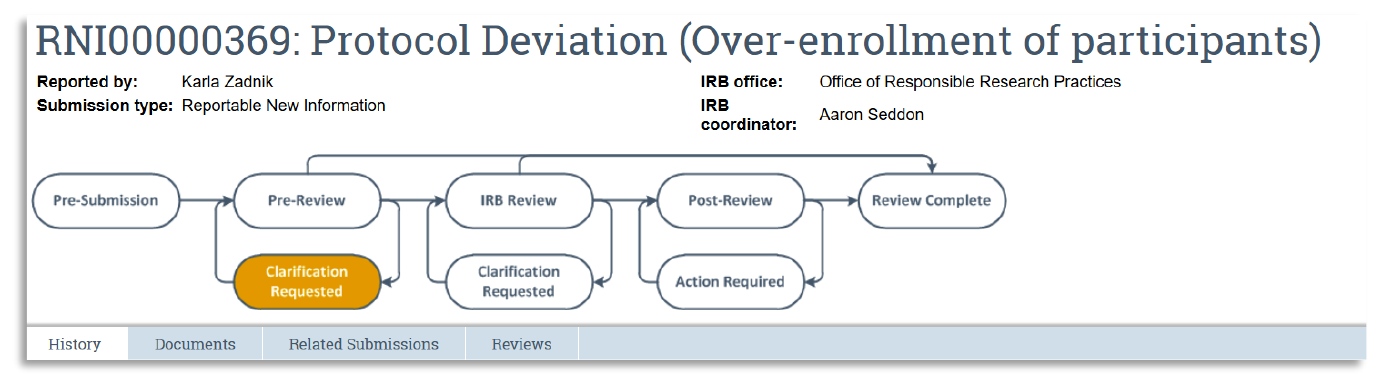
After you submit a Reportable New Information (RNI) report, a staff member from the Office of Responsible Research Practices (ORRP) screens it. If they find inconsistencies or missing components, they email you a request for clarification.
The submission stays in the Pre-Review stage, with the status Clarification Requested, until you respond.
Open the request
- Log in to Huron.
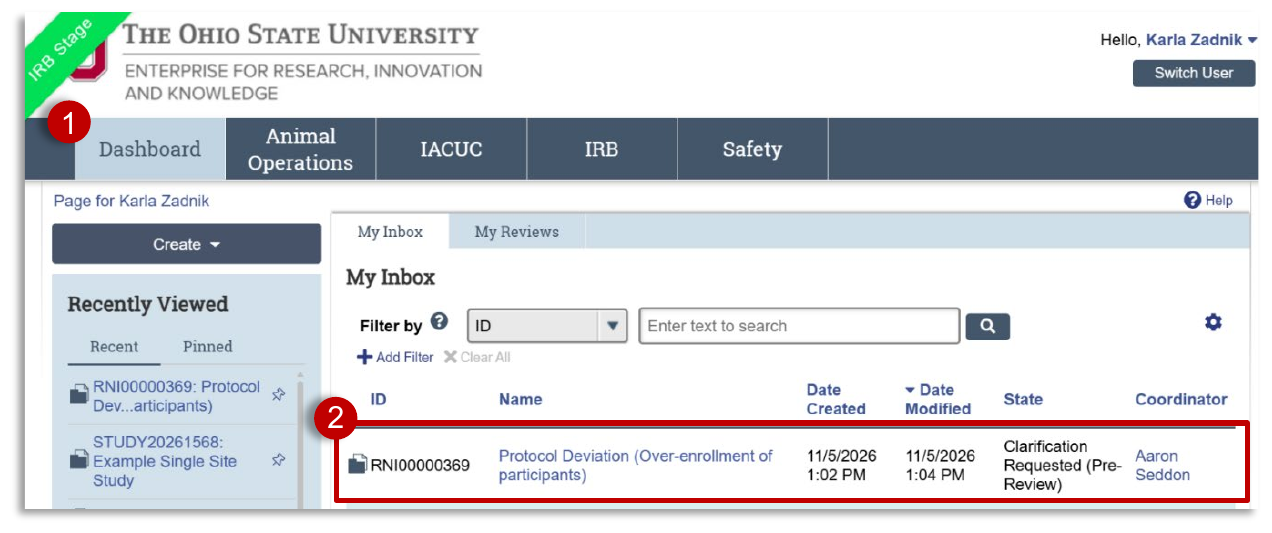
- On your Dashboard, find the request in your Inbox and select it to open the study workspace.
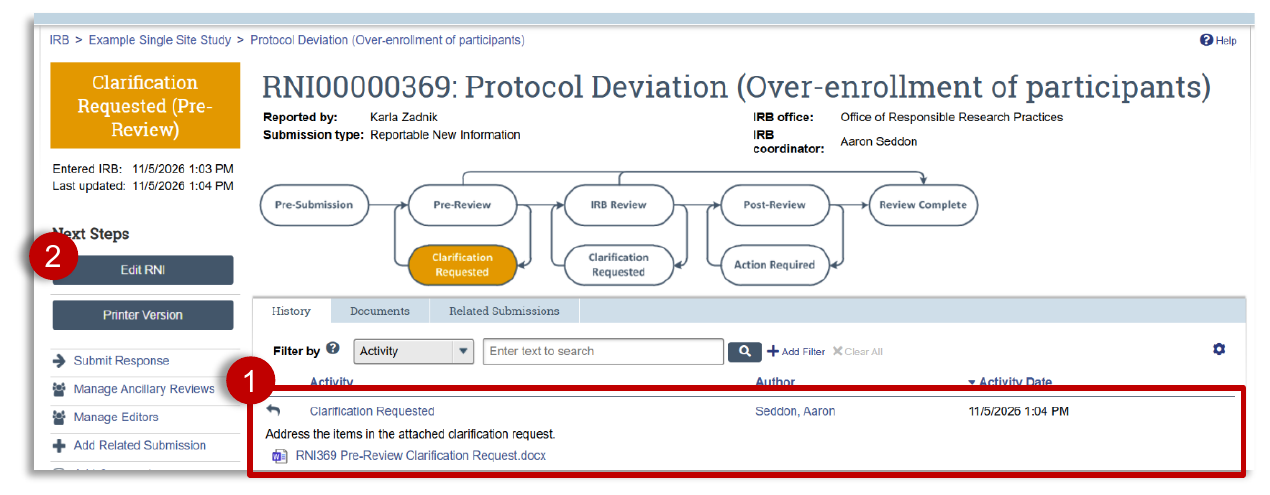
- In the History tab, select the clarification request to see the details. For requests with several items, an attached Word document lists everything that needs to be addressed.
- Select Edit RNI to open the smart form.
Make your changes
Go to the sections of the smart form named in the request and make your edits.
Upload a revised document
To replace a Word document you already attached, such as the RNI Supplemental Information Form:
- Select the ellipsis (…) next to the document.
- Select Upload Revision.
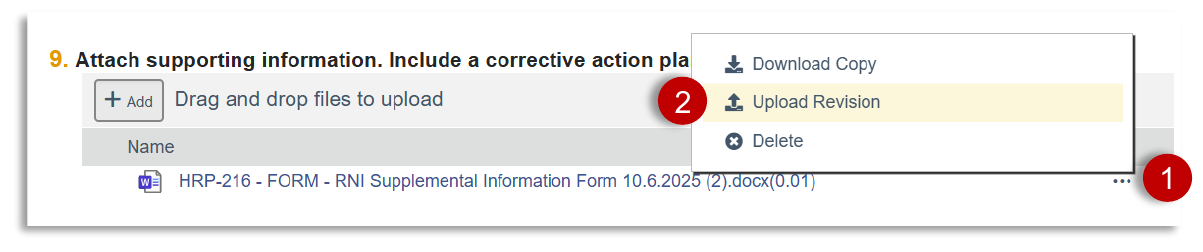
- Choose the revised file and select OK.
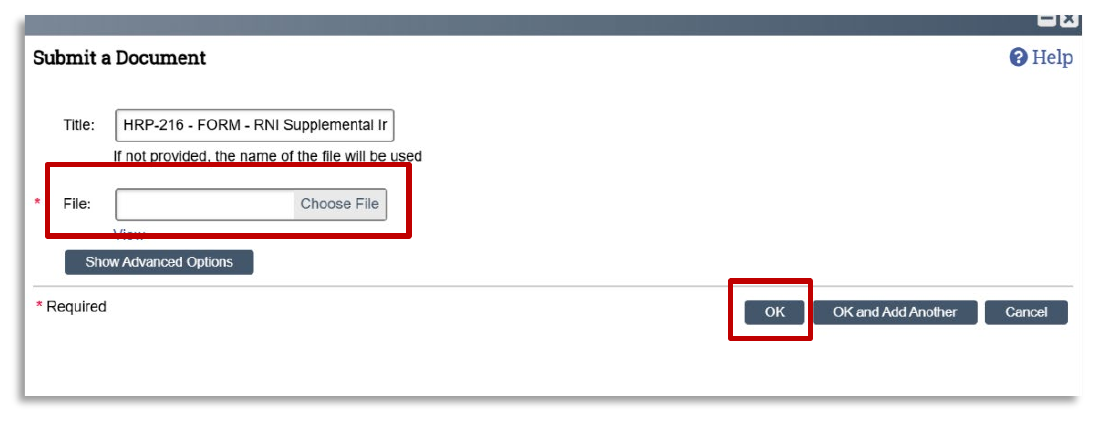
Tip: Use Upload Revision instead of adding a new file, so reviewers see the version history in one place.
Check your changes (optional)
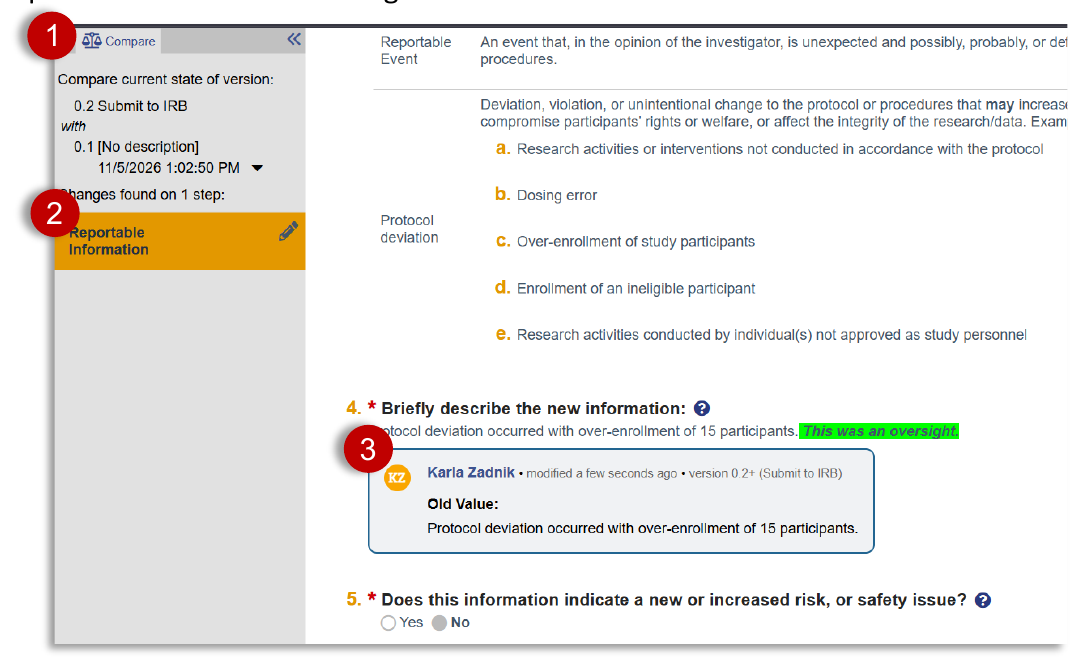
- Select Compare at the top of the left navigator.
- A pencil icon appears next to each section you changed.
- Each change shows when it was made, who made it, and the old value.
Submit your response (required)
- Exit the smart form to return to the study workspace.
- Under Next Steps, select Submit Response.
- In the pop-up, add any notes or supporting documents for the reviewer, then select OK.
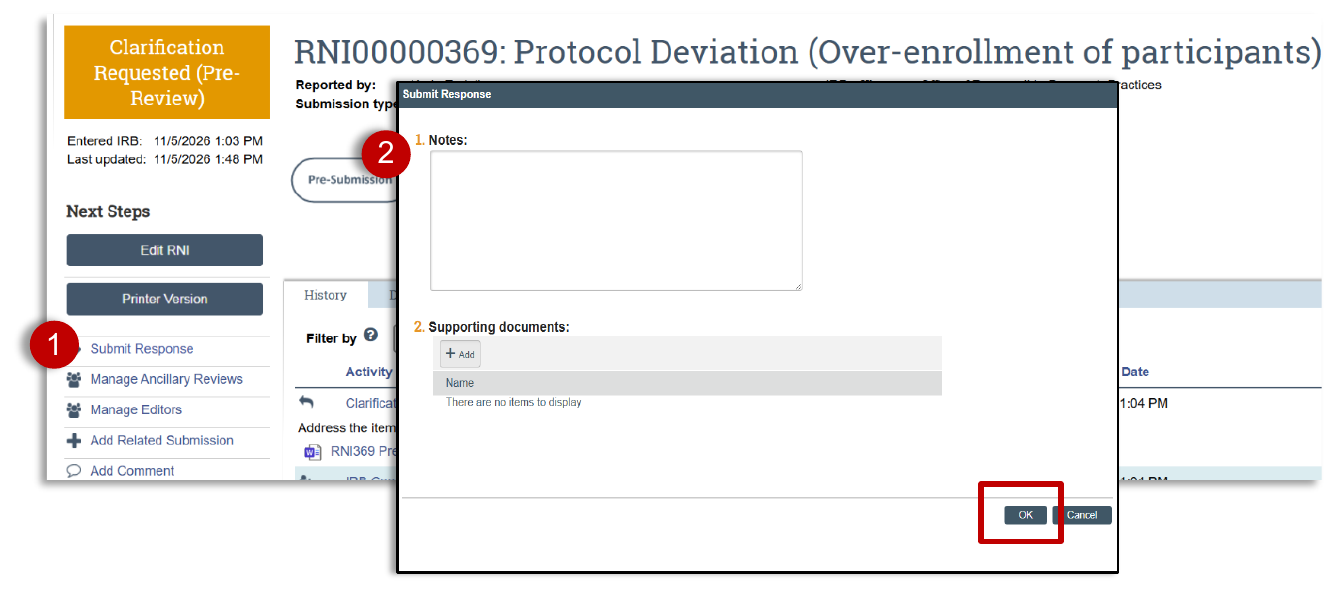
Reminder: If you skip Submit Response, the submission stays in Clarification Requested and ORRP does not see your changes.
What happens next
The submission returns to Pre-Review, and the assigned IRB coordinator screens your response.
Get help
Contact the IRB coordinator assigned to your submission. Their name appears next to IRB coordinator at the top of the submission.